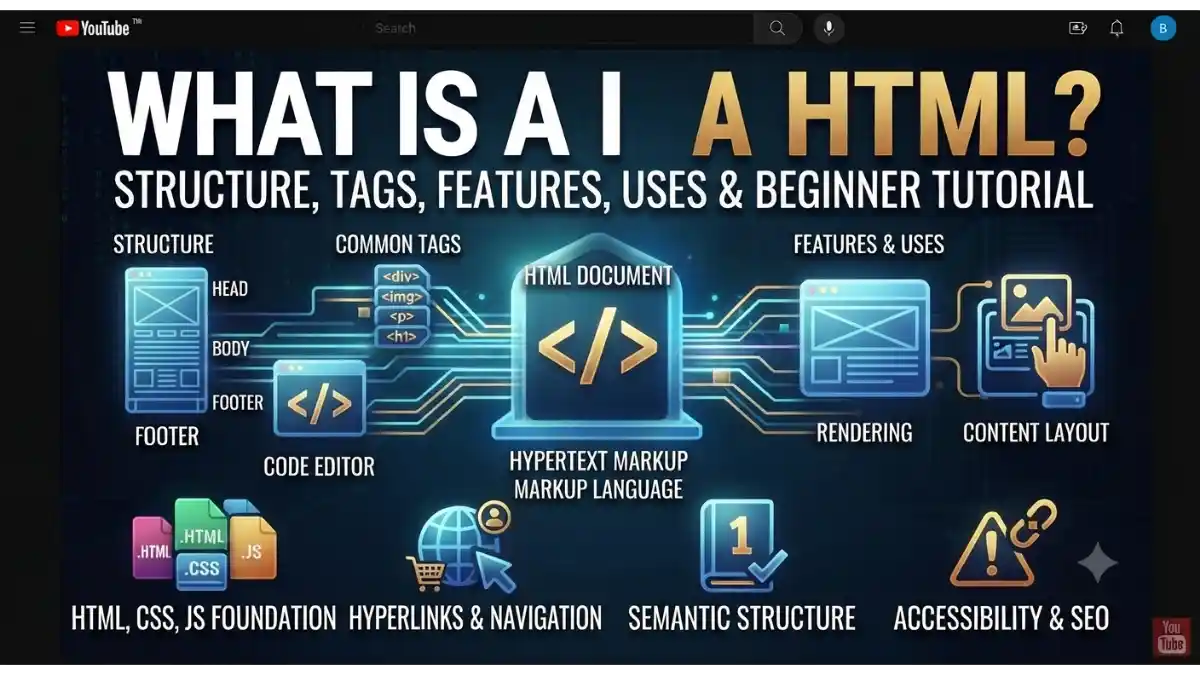
What Is HTML?
Whenever you open a website, the page you see is built using HTML. It defines the structure of web pages by organizing text, images, links, videos, forms, and other content.
HTML stands for HyperText Markup Language. It is the standard markup language used to create and structure web pages on the internet.
In simple words, HTML is the skeleton of a website. Just as a human skeleton gives shape to the body, HTML gives structure to a web page. CSS is used to style the page, and JavaScript adds interactivity.
Whether you’re creating a personal blog, business website, e-commerce store, or web application, HTML is the first language every web developer learns.
Table of Contents
- What Is HTML?
- Why Is HTML Important?
- How Does HTML Work?
- Basic Structure of an HTML Document
- Common HTML Tags
- HTML Elements and Attributes
- Features of HTML
- Uses of HTML
- Advantages of HTML
- Limitations of HTML
- HTML vs CSS vs JavaScript
- Beginner HTML Tutorial
- Best Practices for Writing HTML
- Frequently Asked Questions (FAQs)
- Conclusion
Why Is HTML Important?
HTML is the foundation of every website. Without HTML, browsers would not know how to display web content.
Reasons Why HTML Is Important
- Creates the structure of web pages
- Displays text, images, videos, and links
- Works with CSS and JavaScript
- Supported by all modern web browsers
- Easy to learn for beginners
- Essential for web development
- Helps improve website accessibility and SEO when used correctly
How Does HTML Work?
HTML uses tags to tell the browser how different parts of a webpage should be organized.
The process works like this:
- You write HTML code in a text editor.
- Save the file with the .html extension.
- Open the file in a web browser.
- The browser reads the HTML code.
- The browser displays the webpage.
Browsers interpret HTML—they do not display the code itself.
Basic Structure of an HTML Document
Every HTML page follows a basic structure.
<!DOCTYPE html>
<html lang=”en”>
<head>
<meta charset=”UTF-8″>
<meta name=”viewport” content=”width=device-width, initial-scale=1.0″>
<title>My First Web Page</title>
</head>
<body>
<h1>Welcome to HTML</h1>
<p>This is my first HTML page.</p>
</body>
</html>
Explanation
- <!DOCTYPE html> – Declares the document as HTML5.
- <html> – The root element of the webpage.
- <head> – Contains metadata such as the title and character encoding.
- <title> – Displays the page title in the browser tab.
- <body> – Contains all visible webpage content.
Common HTML Tags
HTML includes many tags for different types of content.
Heading Tags
Used to create headings.
<h1>Main Heading</h1>
<h2>Sub Heading</h2>
<h3>Section Heading</h3>
Paragraph Tag
<p>This is a paragraph.</p>
Link Tag
Creates clickable links.
<a href=”https://example.com”>Visit Website</a>
Image Tag
Displays an image.
<img src=”image.jpg” alt=”Sample Image”>
List Tags
Unordered List
<ul>
<li>Apple</li>
<li>Banana</li>
</ul>
Ordered List
<ol>
<li>Step One</li>
<li>Step Two</li>
</ol>
Table Tag
<table>
<tr>
<th>Name</th>
<th>Age</th>
</tr>
<tr>
<td>Rahul</td>
<td>25</td>
</tr>
</table>
Form Tag
<form>
<input type=”text” placeholder=”Your Name”>
<button>Submit</button>
</form>
HTML Elements and Attributes
An HTML element usually consists of an opening tag, content, and a closing tag.
Example:
<p>Hello World</p>
An attribute provides extra information about an element.
Example:
<a href=”https://example.com”>Visit</a>
Here, href is an attribute that specifies the destination URL.
Common attributes include:
- id
- class
- href
- src
- alt
- title
- style
Features of HTML
HTML offers several useful features.
Easy to Learn
HTML has simple syntax that beginners can understand quickly.
Platform Independent
HTML files work on Windows, macOS, Linux, and other operating systems.
Browser Support
All major browsers support HTML.
Examples:
- Google Chrome
- Mozilla Firefox
- Microsoft Edge
- Safari
- Opera
Multimedia Support
HTML can display:
- Images
- Audio
- Video
- SVG graphics
Semantic Elements
HTML5 introduced semantic tags that improve structure and accessibility.
Examples:
- <header>
- <nav>
- <main>
- <section>
- <article>
- <footer>
Uses of HTML
HTML is used in many types of web projects.
Website Development
Build personal, business, and e-commerce websites.
Landing Pages
Create marketing and product pages.
Blog Websites
Display articles, categories, and author information.
Online Forms
Collect user information using forms.
Email Templates
Many HTML emails use structured HTML with inline CSS for compatibility.
Web Applications
Works alongside CSS and JavaScript to build interactive web applications.
Advantages of HTML
Beginner Friendly
Simple syntax makes it ideal for learning web development.
Free and Open Standard
HTML is maintained as an open web standard and can be used without licensing fees.
SEO Friendly
Proper HTML structure helps search engines understand webpage content more effectively.
Fast Loading
Clean HTML pages generally load quickly, especially when optimized.
Works with Other Technologies
HTML integrates with:
- CSS
- JavaScript
- PHP
- Python
- React
- Angular
- Vue.js
Limitations of HTML
HTML also has some limitations.
No Programming Logic
HTML cannot perform calculations or decision-making on its own.
No Dynamic Functionality
Interactive features require JavaScript or server-side technologies.
Limited Styling
HTML provides structure only. CSS is needed for advanced design and layout.
HTML vs CSS vs JavaScript
| Feature | HTML | CSS | JavaScript |
| Purpose | Structure | Design | Interactivity |
| Creates Content | ✅ Yes | ❌ No | ❌ No |
| Styles Webpages | ❌ No | ✅ Yes | Limited |
| Adds Animations | ❌ No | ✅ Yes | ✅ Yes |
| Handles User Actions | ❌ No | ❌ No | ✅ Yes |
Beginner HTML Tutorial
Follow these simple steps to create your first webpage.
Step 1: Install a Code Editor
Popular options include:
- Visual Studio Code
- Notepad++
- Sublime Text
Step 2: Create a File
Save a new file as:
index.html
Step 3: Add HTML Code
<!DOCTYPE html>
<html>
<head>
<title>My Website</title>
</head>
<body>
<h1>Hello World!</h1>
<p>This is my first HTML webpage.</p>
</body>
</html>
Step 4: Open in a Browser
Double-click the file or open it in any modern web browser to see the result.
Best Practices for Writing HTML
Follow these tips to write clean and maintainable HTML.
- Use semantic HTML elements where appropriate.
- Write meaningful page titles.
- Add alt text to images for accessibility.
- Keep indentation consistent.
- Use lowercase tag names for readability.
- Close elements properly when required.
- Validate your HTML to catch errors.
- Organize content with headings (<h1> to <h6>) in a logical order.
Frequently Asked Questions (FAQs)
What is HTML in simple words?
HTML (HyperText Markup Language) is the standard language used to create the structure of web pages.
Is HTML a programming language?
No. HTML is a markup language, not a programming language. It defines the structure of content but does not perform programming logic.
Can I build a website using only HTML?
Yes, you can build a basic static website using HTML. For styling and interactive features, you’ll typically also use CSS and JavaScript.
What is HTML5?
HTML5 is the latest major version of HTML. It introduced semantic elements, multimedia support, improved forms, and many modern web features.
Is HTML difficult to learn?
No. HTML is one of the easiest web technologies to learn and is often the first step for beginners entering web development.
Conclusion
HTML is the foundation of every website on the internet. It provides the structure that allows browsers to display text, images, links, forms, videos, and other content in an organized way.
By learning HTML, understanding common tags, and following best practices, beginners can start creating their own web pages and build a strong foundation for web development. Once you’re comfortable with HTML, the next step is learning CSS for styling and JavaScript for adding interactive functionality to your websites.